If you want to improve your developer experience when working in JavasScript with VSCode, you need to start adding a jsconfig.json file to all your projects.
What is jsconfig.json?
VSCode uses a jsconfig.json file to aid your JavaScript language service and significantly improve your development experience.
Let's say you've just installed a new Laravel PHP application and are using the Laravel Breeze Inertia starter kit. When you open the webpack.config.js file, you'll see the following.
const path = require('path'); module.exports = { resolve: { alias: { '@': path.resolve('resources/js'), }, },};The above helps instruct Webpack on how modules are resolved in your application. It allows you to use @ as a shortcut, so you don't have to back step to create relative paths to other components.
Let’s say you have the following a component in /resources/js/Components called Input.vue and Page component in /resources/js/Pages/Dashboard/Index.vue.
To import the Input.vue component, it would look like this.
import Input from `../../Components/Input.vueWith the help of the @ alias, you can change this to the following.
import Input from `@/Components/Input.vueYou can go a step further and add a component alias as well.
const path = require('path'); module.exports = { resolve: { alias: { '@': path.resolve('resources/js'), '@Components': path.resolve('resources/js'/Components), }, },};Which will let you then import like this.
import Input from `@Components/Input.vueSo much cleaner.
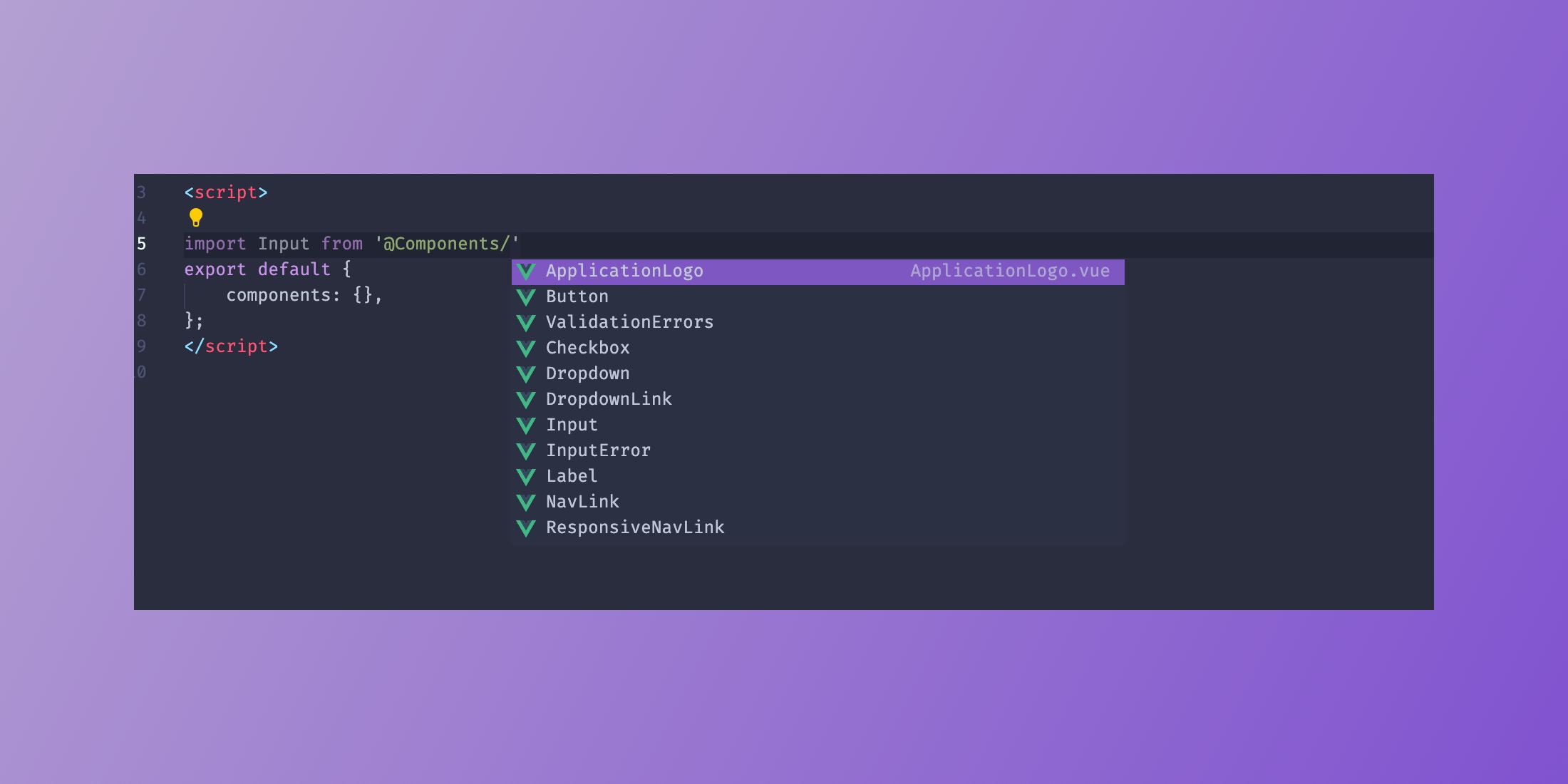
The one thing that is missing here, if you're using VSCode, is your IDE won't be able to help you with auto-completing your paths. This is where the jsconfig.json file comes into play.
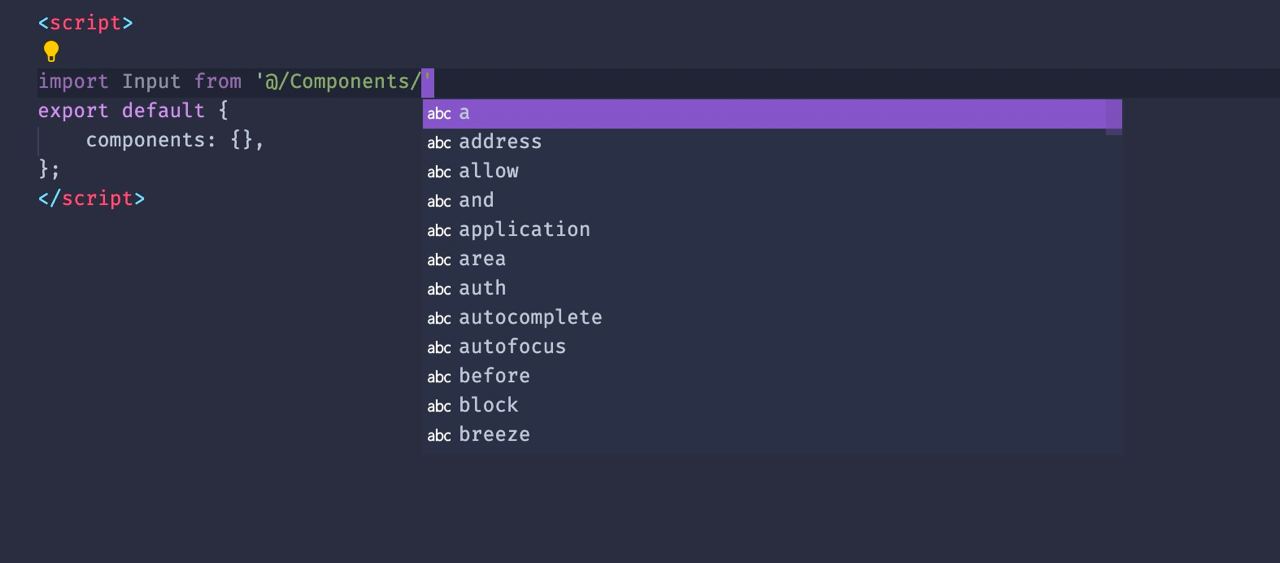
Let's create a jsconfig.json and place it in the root of our Laravel application at the same level as the webpack.config.js file.
Open it up and add the following.
{ "compilerOptions": { "baseUrl": ".", "paths": { "@/*": [ "resources/js/*" ], "@Components/*": [ "resources/js/Components/*" ] } }, "exclude": [ "node_modules", "public" ]}Note you might have to restart VSCode for jsconfig.json to take effect.
Now, when you type import Input from '@". You will start to see your folder structure and the files that are in each directory.
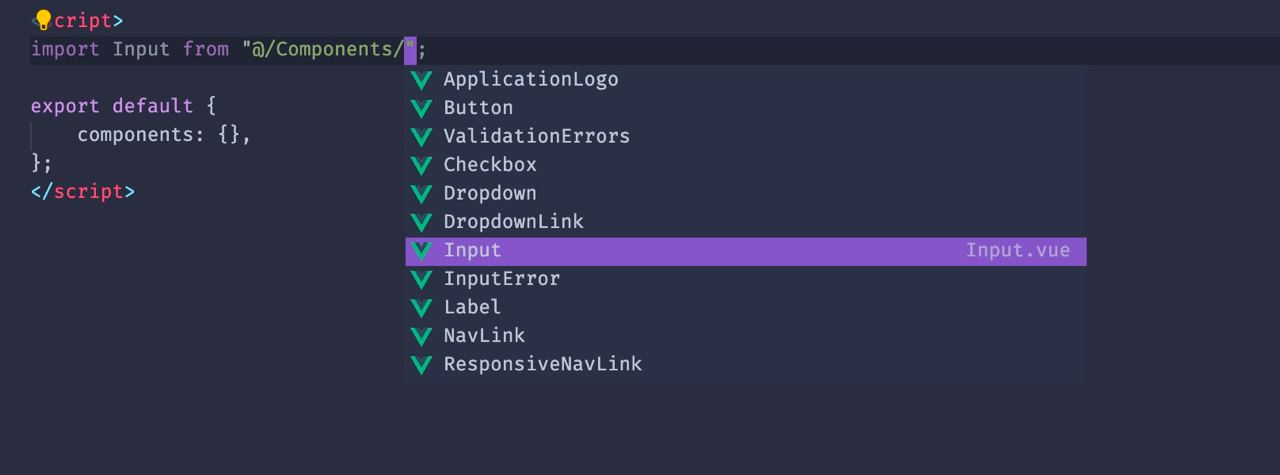
That's it! Now you can get full auto-complete and file browsing support in your VSCode IDE.
Happy coding!