Frequently I want to look at the folder context of a file I am editing in my code editor. I often use shortcuts like “Go to symbol” or “Go to anything” to open a file most of the time. However, what if I want to see the context of the file within the project folders?
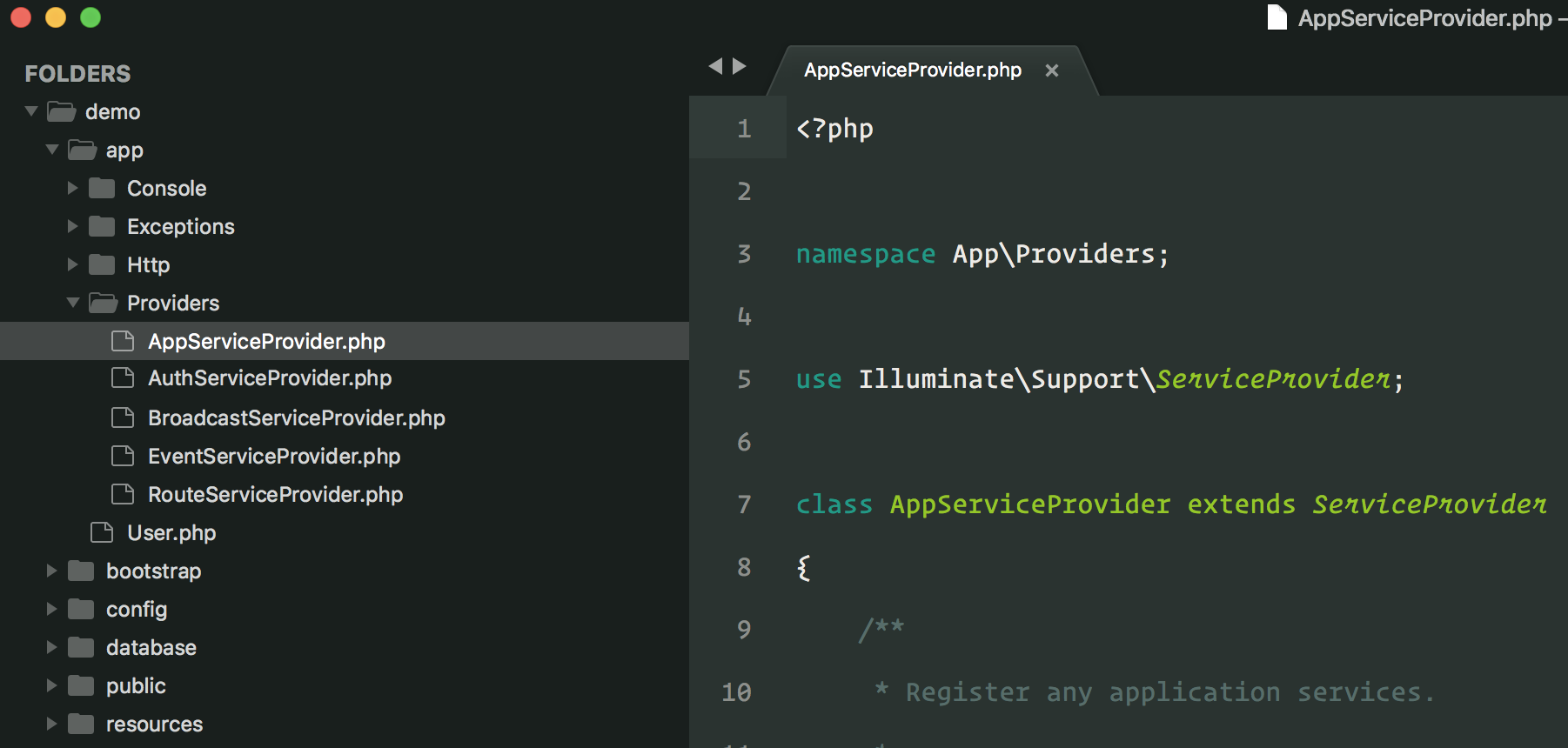
Going to the file in the sidebar helps me visualize the namespaces involved and the overall structure of a set of classes and files. It’s handy in the context of your app as well as vendor packages like the Laravel framework.
Since I use various editors I thought it would be useful to collect how you can set this up and provide a keyboard shortcut in the most popular editors as of 2019. If you want to share how to do this in your editor of choice, shout out on Twitter at @laravelnews and we’ll add it here!
Note: I use Control + Shift + R as my shortcut because to me “R” stands for “Reveal” so it’s easier for me to remember.
PhpStorm Setup
PhpStorm has built-in support for selecting the current file in the project view, but you have to set up a keyboard shortcut. I use Control + Shift + R in Sublime Text, so to keep the shortcut the same in PhpStorm I override the default. Feel free to pick whatever shortcut you want!
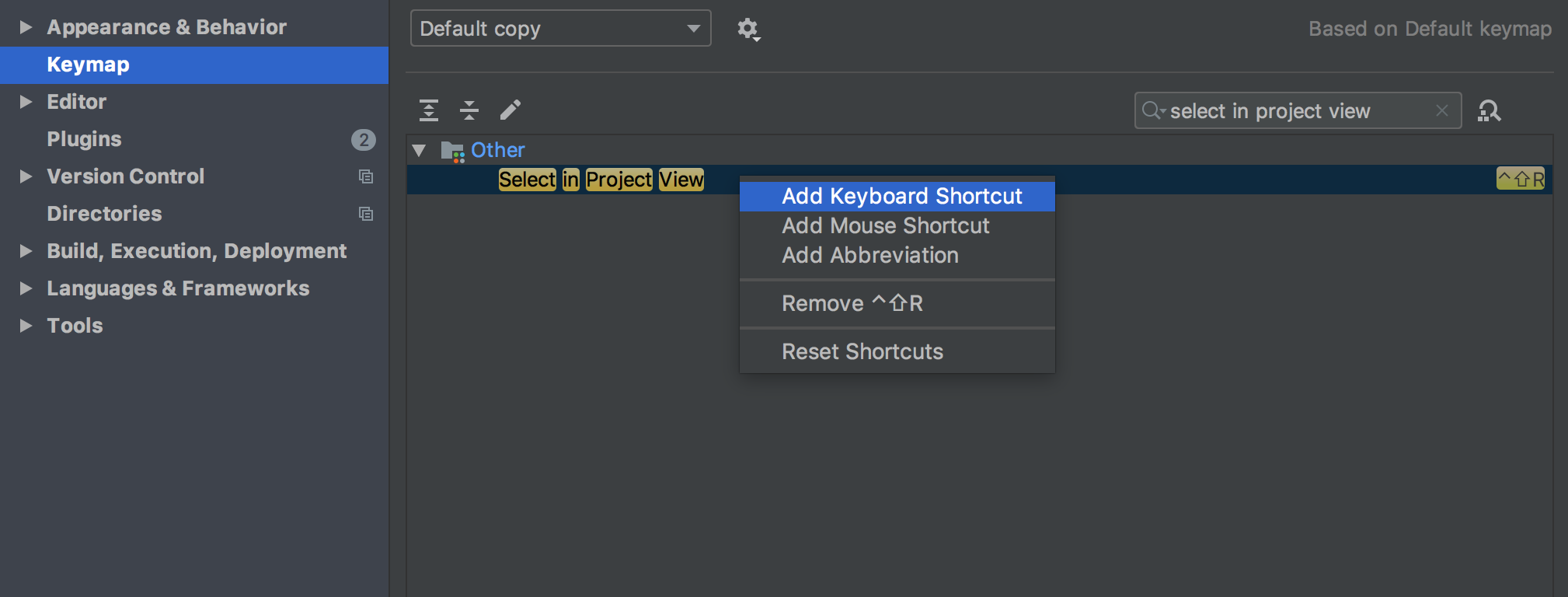
To add a keyboard shortcut, go to Preferences | Keymap and filter by “Select in Project View”. Right click and select “Add Keyboard Shortcut”:
VS Code Setup
In Visual Studio Code, you can add the following configuration to the keybindings.json file:
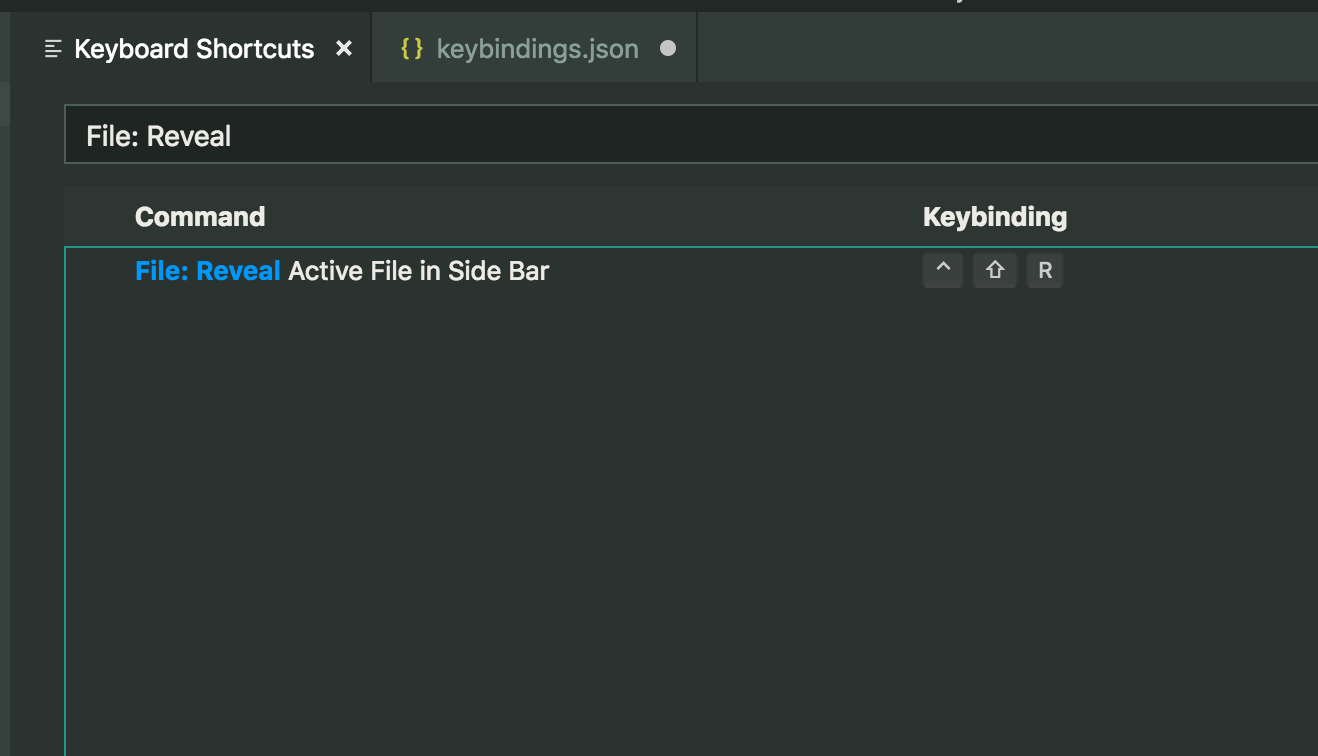
{ "key": "ctrl+shift+r", "command": "workbench.files.action.showActiveFileInExplorer"}You can also visually search for it and use the UI to bind the keymapping by using the keyboard shortcut ⌘K ⌘S and searching for “File: Reveal”:
Thanks to Chris Kankiewicz for this tip on Twitter!
Sublime Text Setup
I originally shared this tip in my Minimalist Sublime Text 3 Setup for PHP post. To reveal the file in the sidebar, add the following to your keymap configuration:
{ "keys": ["ctrl+shift+r"], "command": "reveal_in_side_bar"}To get to your user-configured keybindings you can hit Ctrl/Cmd + Shift + P and type “Preferences: Key Bindings” or go to Preferences | Keybindings via the UI Menu.
What about ___ Editor?
PhpStorm, VS Code, and Sublime Text are the most popular editors out there for PHP as of 2019. If you have a favorite editor and want to share how to reveal a file in the sidebar, let us know how to do it on Twitter at @laravelnews.
Additional Editors
The following is a list instructions for other editors that the community shared on Twitter.
Atom Setup
Atom provides this feature out of the box using the Ctrl+Shift+\ shortcut. You can customize the shortcut in your workspace config with the tree-view:reveal-active-file option. Hat tip to @cliambrown for the details.