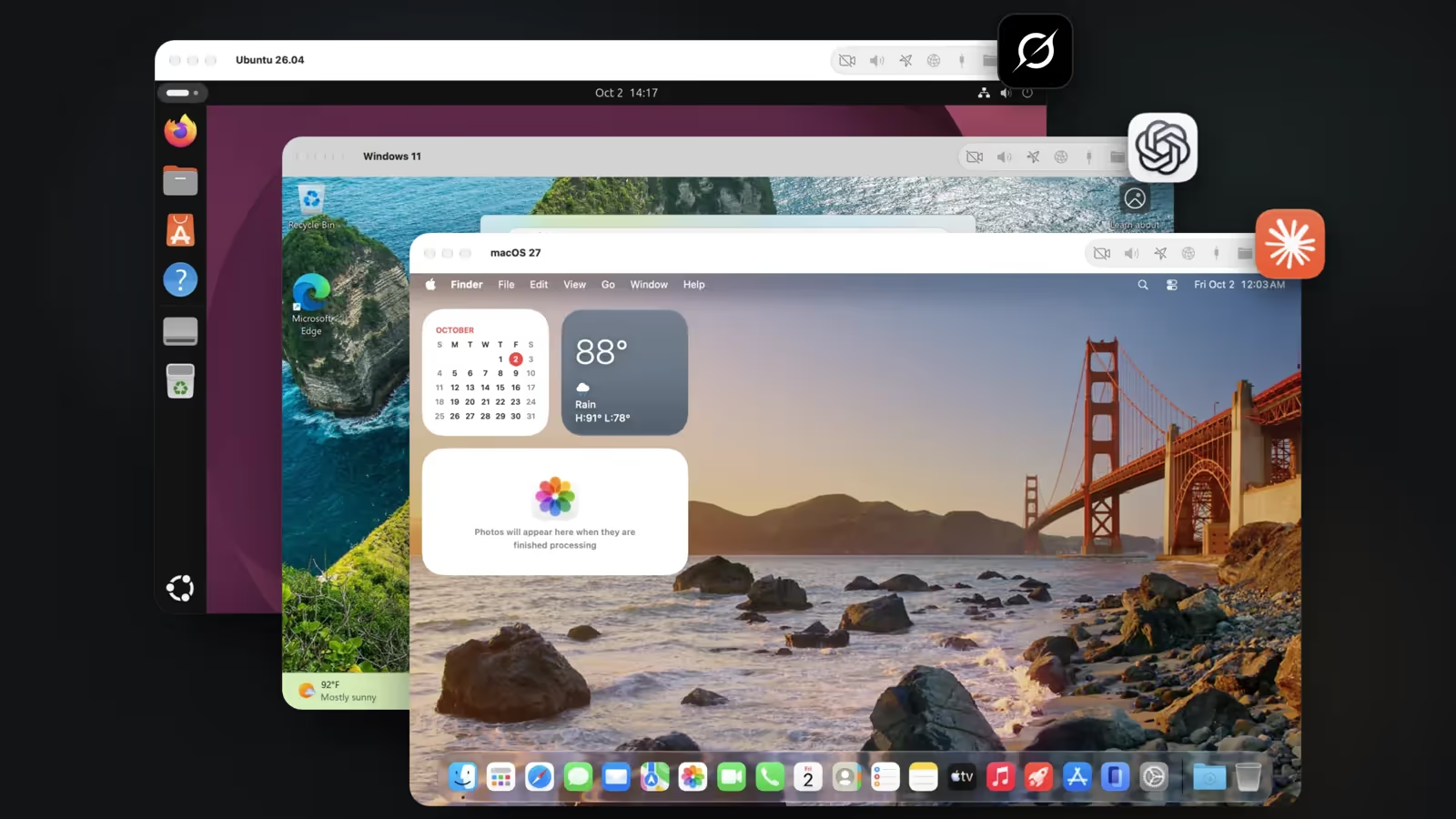
VMPal, from the team behind TablePlus, gives your AI agent a whole computer of its own. It runs macOS, Windows, and Linux virtual machines on Apple silicon, and you can hand any of them to Claude Code, Codex, Grok CLI, or Gemini CLI with full control of the screen, keyboard, mouse, and admin rights.
An agent working on your own Mac can write code and run tests, but it has to stop as soon as it needs more than a terminal. It needs Accessibility access to click and type, Screen Recording access to see the screen, and a password for sudo or a click on Windows' User Account Control prompt. Some dialogs only a person can click. So you end up sitting at the machine approving each prompt, and the agent only works while you watch.
What the Agent Gets
When you turn on agent control for a VM, the agent gets the same access as a person sitting at that machine:
- The screen. It sees the VM's display directly, without a Screen Recording permission.
- The mouse and keyboard. It clicks, drags, scrolls, types, and uses shortcuts through the VM's own input devices, without an Accessibility permission.
- Administrator rights. It runs commands as the user or as an administrator, without a sudo password or a User Account Control prompt.
- A direct connection. It connects through VMPal's built-in MCP server, so you don't have to set up SSH, VNC, or remote desktop.
You approve the agent once when you connect it. After that, it can run installers, answer prompts, and sign in on its own.
Setting It Up
Open a VM's Settings › AI Agents and turn on Allow agent control of this VM. Then pick where your agent runs:
- Agent on This Mac. Your agent stays on your Mac and controls the VM from there. Connect more VMs and it can use each of them, as long as they're running.
- Agent Inside the VM. Your agent lives in the VM with its own files and tools. Install it there first.
Either way, click Add to Claude Code (or the button for Codex, Grok CLI, or Gemini CLI), restart your agent, and give it a task. On a macOS VM, connecting the first agent asks for the VM's administrator password.
Keeping It Contained
The agent gets full control of the VM and nothing else:
- It never touches your Mac's screen, mouse, or keyboard, and your files stay out unless you share a folder.
- Agent control is off by default, and you turn it on one VM at a time. Turn it off and the agent stops right away.
- You can take a snapshot before a big task and roll the whole machine back in seconds if something goes wrong.
- The agent only reaches the network and folders you give that VM.
Also a Regular VM App
VMPal works as an everyday VM app too. It installs macOS, Windows 11, Ubuntu, and Fedora for you, uses your Mac's GPU in each one, and includes port forwarding, shared folders and clipboard, and Parallels import.
VMPal is free to download, and a license is a one-time purchase with a year of updates. Launch pricing is 50% off right now: $34.50 for an individual license and $49.50 per seat for teams. It requires an Apple silicon Mac running macOS 26 or later.
Read Give your AI agent a whole computer on the VMPal blog for more details, and download VMPal to give your agent a machine of its own.